Content control by device type
Description
To maintain compatibility with most layouts in version 4, Corporater BMP version 5.0.0.0 introduces the new concept of a container.
You can add content on a BMP page in one of the following ways:
- Directly on the page, without using containers.
- To set two objects to display next to each other on a page, configure the width value as three for both objects. If the objects have unequal height values and the page includes additional content that displays below the objects, empty white space appears between the objects and the additional content.
- Directly to one or more tabs.
- In containers on one or more tabs.
- Both on a tab and in containers.
Adding content both on a tab and in containers displays the content in the containers above the content that you assign to the tab.
Both tabs and containers are divisible by a width value of six.
If a page includes two containers with a width value of three and four, respectively, the content of the page stacks up since there is not enough space on the page with the total of columns being seven instead of six.
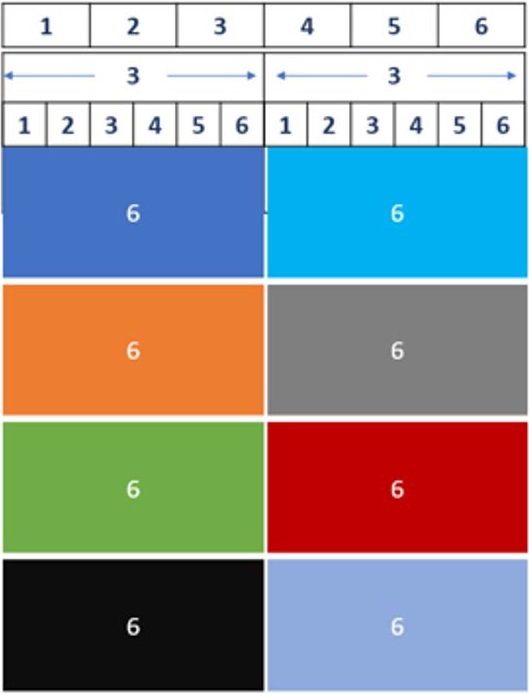
To set the content on a page to flow down to four equally-sized columns, add four containers to the page, each with a width value of three. This displays the content in two side-by-side columns, each containing two containers of equal width.
The following illustration shows this division of page space on a large device type.

To set the content of the page to fill each of the four containers, assign the width value of six to each container.
To set it to display in two columns on the page, on a medium or small device type, assign a width value of six to each container. As a result, each container displays across the full width of the device type, which enhances readability.
Containers can be added inside containers.
The space that appears on a page between containers is fixed.
Empty containers use no page space.
During migration from version 4, Corporater BMP maps existing page content from headers, footers, and columns to containers with corresponding names in version 5.
For best practices on how to organize your content into seamless grids, access Corporater's Dashboard Design guide.
Configuration
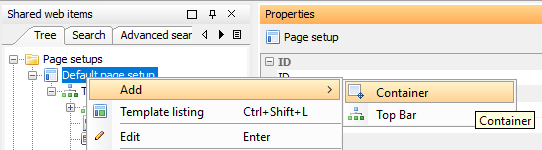
You can add containers as part of page setup from Shared web items in Configuration Studio.
The values in a container's Layout section determine the span of the container across the page.
You can specify a unique configuration of these values for each device type. This is particularly useful for containers that display on small device types.
To apply the column-style views from version 4 to a page, link the content of the page to containers in Shared web items.
To reuse containers on multiple pages, create template containers. For example, create two containers called 'Left' and 'Right', each with a width value of three, and then place multiple objects in each container. For each object to fill the container, assign a width value of six to the object. Any unused space appears below one of the containers.
To create a container for a single page, add it directly to the page on Web or create it in the organizational model in Configuration Studio. Then, add the content of the page as one or more child elements. Note that, in this case, the container becomes the parent of any object on the page.