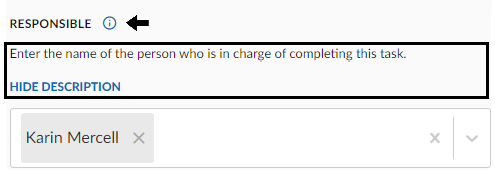
Data input in tables
Corporater BMP table objects are a structured means to review and compare related data.
Some display data as read-only and others as editable.
Edit table data
You can edit table data only if you have editing rights for table objects in Corporater BMP or for the specific table to edit.
Inline editing mode
You can use inline editing to edit cell data that is visible in the table, directly on the table page.
The mode becomes active when you click the Edit icon ( ) from the table toolbar and inactive once you click Finish Editing.
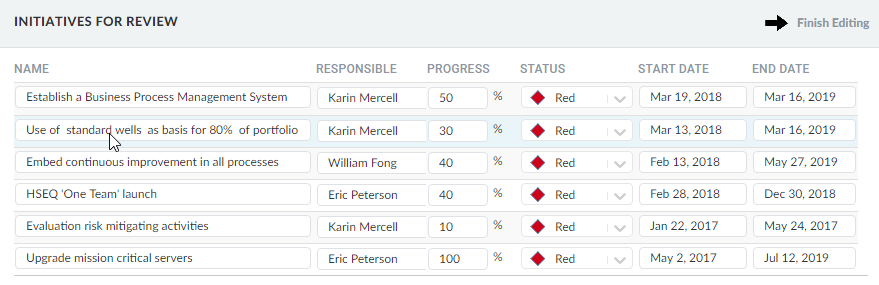
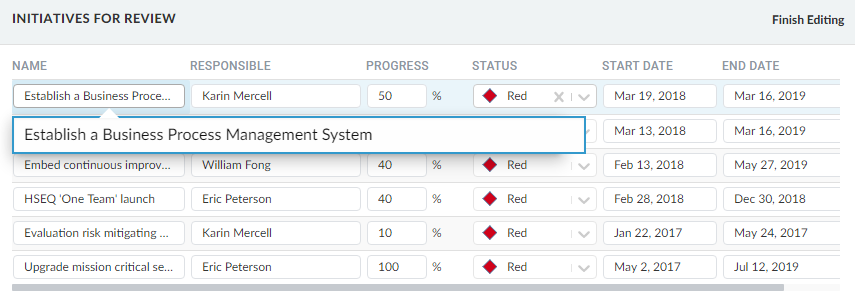
Click inside a table cell to edit its content.
If the content exceeds the size of the field on-screen, use the edit bubble that displays.
Edit referenced data
Some cells refer to other objects and their properties.
To edit data in these cells, you must click the cell content.
In the Add to list dialog, search for one or more referenced values, and then click OK.
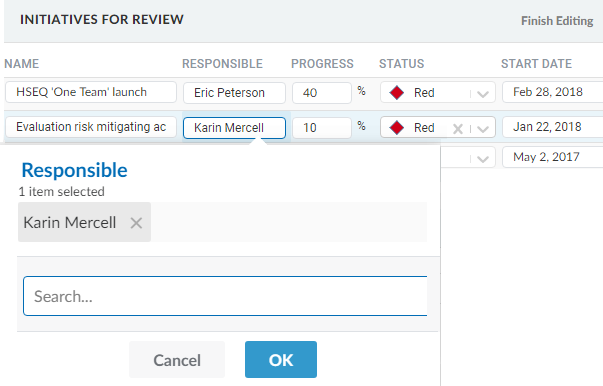
The search is dynamic and requires a minimum of three characters.
- If the cell references a user, you can search by the user’s first name, last name, or ID.
The search results include the user’s first name, last name, and email address, if available.
- If the cell references another object, you can search by the object's name or ID.
The search results include the organization and referenced object's name.
Selected values appear on the grey bar at the top of the Add to list dialog.
Edit page
You can use the Edit page to edit both cell data and table properties that are hidden in the table.
The Edit page is separate from the table page.
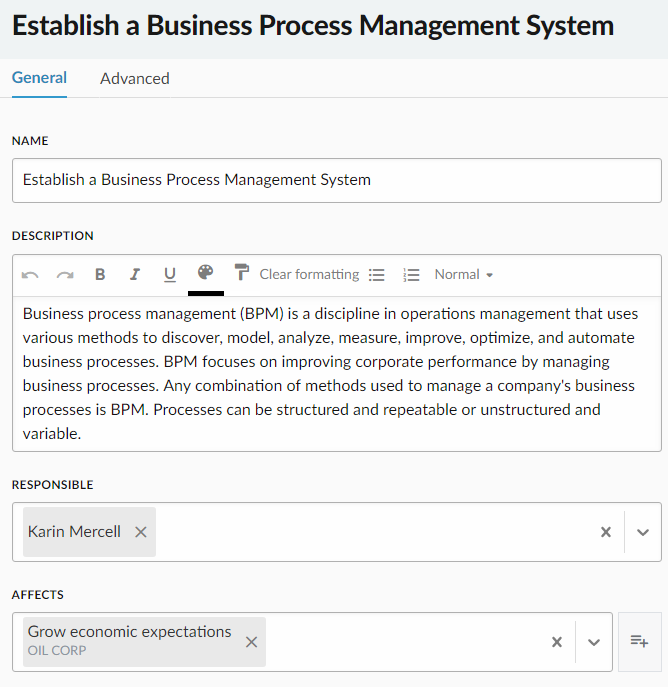
Depending on the type of data to edit, you can open the Edit page as follows:
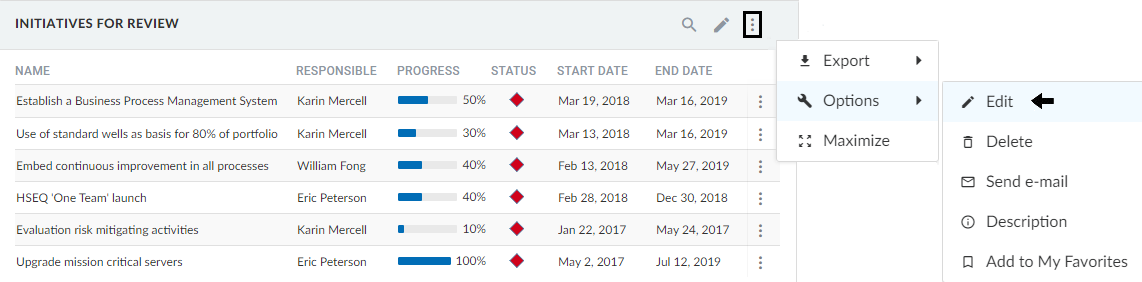
- For table properties - From the Function menu (
 ) for the table.
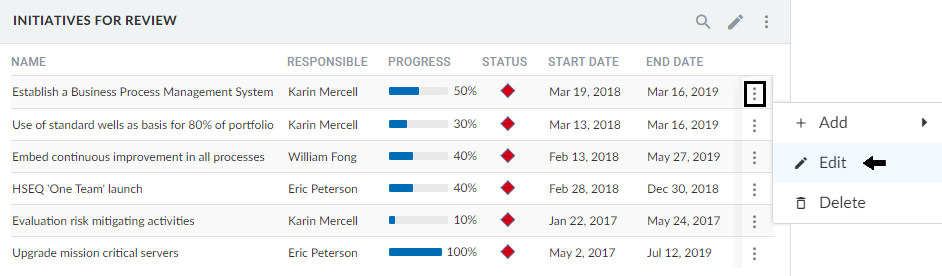
- For cell data - From the Function menu () for the table row that includes to cell to edit.
View cell information
Some cells include user information on their content.
To view this information for a cell, click Info ( ).
).
The text displays in a separate section.